
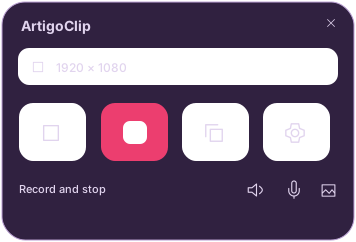
 View original product capture
Install for your operating system
On Windows 10 22H2 (build 19045) or later, install ArtigoClip from Microsoft Store. Intel/AMD x64 and ARM64 use the same official product page. For Mac, choose the 1.11.1 preview file for Intel or Apple Silicon on macOS 14.2 or later. Real-Mac execution checks, Developer ID signing, and notarization have not yet been completed.
Open the small panel
On a new Windows installation, the default panel shortcut is Ctrl+Alt+F9. Existing shortcuts may be retained; check settings. Windows background startup after login is optional. Shortcuts may differ by OS and existing settings. No service account or API key is required.
Choose what to record
Choose a monitor, a particular window or a rectangular area. The default Windows start/stop shortcut is Ctrl+Shift+F9. Check that recording has started before stopping it. Computer audio and microphone are separate panel options.
Review, split and trim
Use Space to play or pause and S to split at the playhead. Select an unwanted segment and press X to remove it and close the gap. Press C to crop the frame. Your original stays intact; edits create a separate result.
Copy and paste into an input
Click the copy icon, wait for export to finish, then press Ctrl+V in a field that accepts files. This copies a file reference, not its path as text. App support varies; text-only fields cannot accept videos. Do not move or delete the output before pasting.
Choose your language and theme
White, Dark and Artigo Purple apply to the panel, editor and settings, and persist after restarting. Supported Windows 11 systems apply the glass effect automatically to Artigo Purple; Windows 10 and systems that do not meet the conditions use opaque UI. Korean, English, Japanese, Simplified and Traditional Chinese, Spanish, French, German, Portuguese and Italian are available. Send us feedback on translations or features.
Last updated October 31, 2026 · Artigo
If the actual screen differs from this guide, let us know.
Download ArtigoClip