
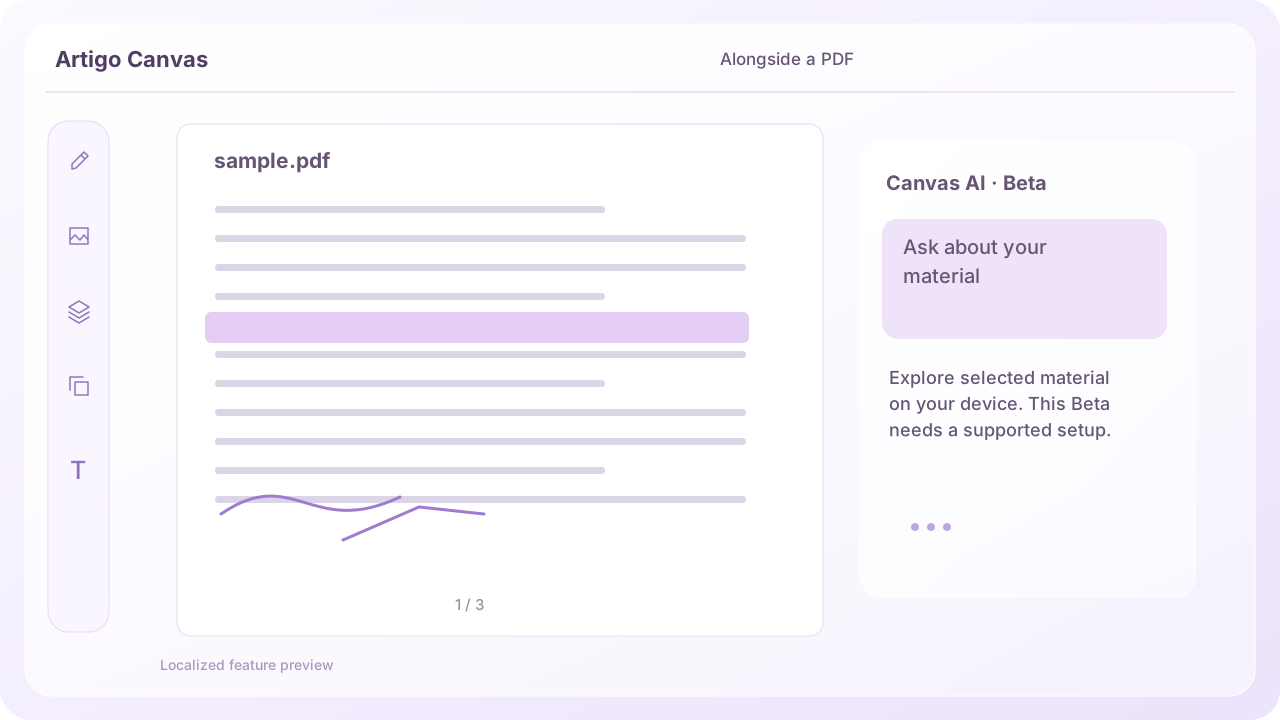
 View original product capture
Preparing AI on your own device
Canvas AI downloads a model and runs it on your device. It needs a supported browser and enough memory and resources. Not every smartphone can run it, and preparation time varies with your device and connection.
Base your question on a selection or page
Ask for a summary or explanation of the selected area or current PDF page. Be specific, such as comparing two entries in a table. Review and edit the result before adding it as text or simple shapes to the canvas.
Choose what to remember or clear
Canvas can retain part of the recent conversation for each document, so you can continue after refreshing the same tab or switching models. You can turn memory off or clear that document's chat. It is not unlimited storage of every past conversation.
Local analysis is different from account storage
Images and questions used for AI analysis are not sent to an external inference server. Projects you choose to save to your account do use separate server storage. Local AI does not mean that every storage operation and connection stays on the device.
Review Beta results yourself
Handwritten Korean, complex formulas and small text may be read or calculated incorrectly. Check numbers and evidence against the original. Review important decisions and submissions yourself, even if the response sounds convincing.
Last updated October 31, 2026 · Artigo
If the actual screen differs from this guide, let us know.
Try it in Canvas